Edit book pictures with AI
Change a picture with the AI prompt bar and compare it before you keep it, keep characters consistent, regenerate, use picture history and add a brand new picture.
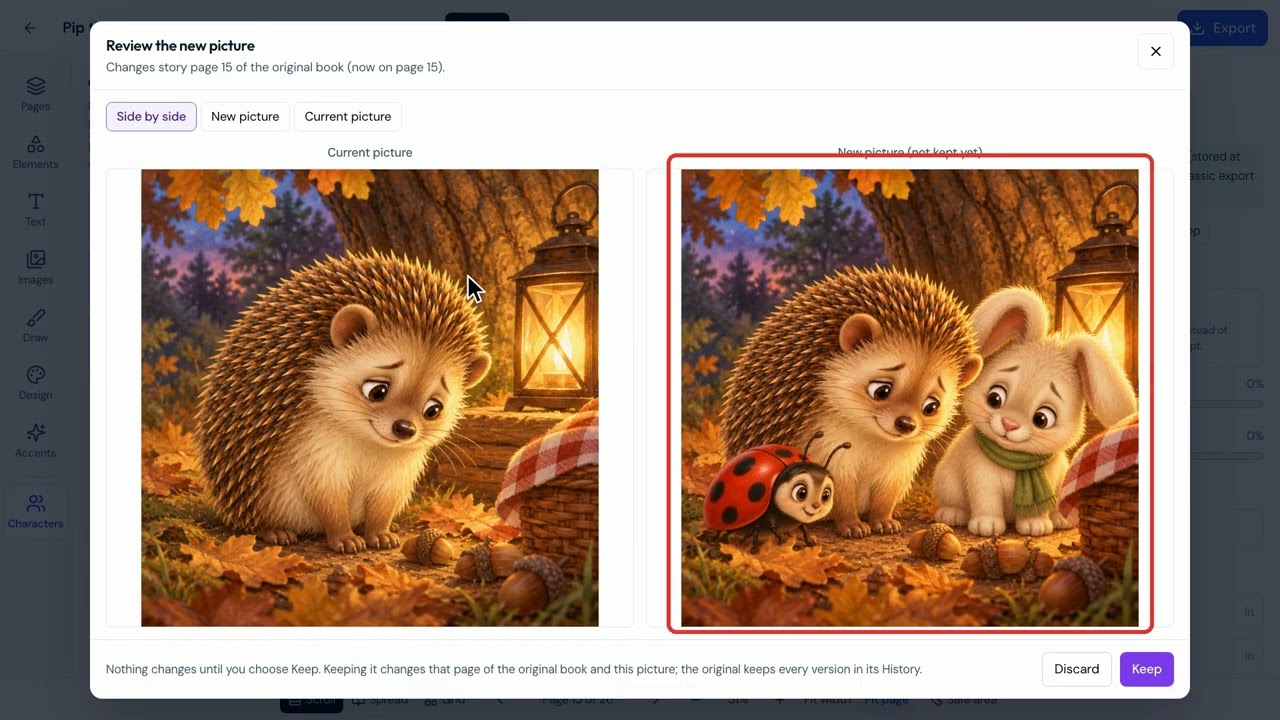
Change one picture at a time and stay in control of the result. Nothing changes on your page until you click Keep, and earlier versions stay in History.
Step by step
Change a picture
Click a picture and the AI changes bar pops up. Type what you want, say what should stay the same, and click Edit. Click View larger to see the current picture and the new one side by side. Nothing changes until you click Keep.
Help characters stay consistent
When you add characters to a picture, click Characters and pick them, which helps them match your other pages. Check the result side by side and make sure everyone looks right before you keep it.
Regenerate
Regenerate makes a completely new version. It redraws the whole picture from the story text, doesn't use typed instructions the way Edit does, and puts the new picture right on the page.
History
Open History to see earlier versions of a picture.
Add a new picture
Click Add page and pick Picture page. Then open Images, click Generate with AI, describe the picture and click Generate. The new picture lands on the page.