Tour the LitPal book editor
A full tour of the LitPal book editor: the KDP check, pages and answer keys, elements, text, images, drawing, whole-book design, views and export.
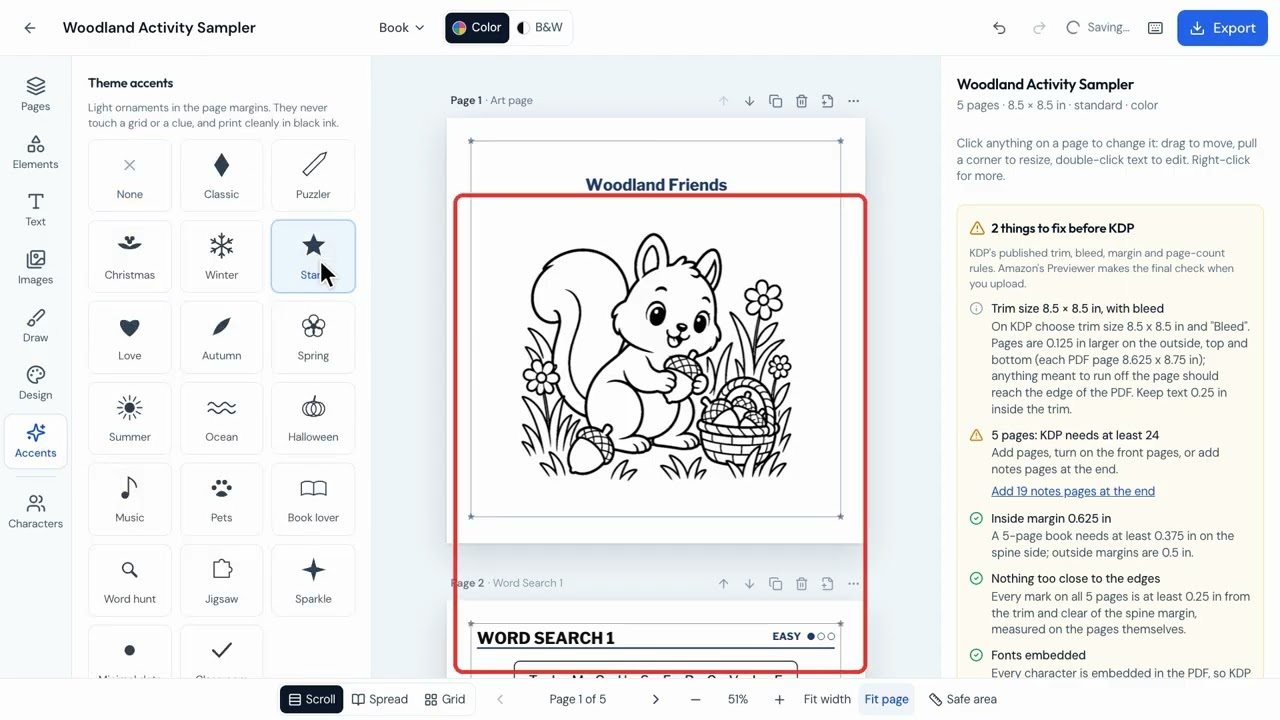
See where everything lives in the editor before you start changing your own book. This tour covers every tool on the left, the views along the bottom and the menus along the top.
Step by step
Find your way around
The top bar has the Book menu, color or black and white, Undo and Redo, and a Saved sign. On the right, LitPal checks your book against KDP's rules. To change anything, click on it.
Pages and answers
Pages shows every page in your book. Add a new page anywhere with the Add button, turn the answer key on or off, and choose how many answers go on each page.
Add things to a page
Elements has lines, shapes, stars, arrows, speech bubbles, frames and QR codes. Text adds headings, paragraphs and small labels. Images lets you upload your own pictures, reuse pictures from the book, or make a new one with AI. Draw lets you draw on the page. Right-click anything for options like Duplicate, Lock and Delete.
Change the whole look
Design changes the whole book at once: choose a LitPal style, change the page size, switch to black and white, or turn on bleed. Accents adds ornaments around the margins, and they stay clear of puzzle grids and clues.
Views and checks
Spread shows pages the way they sit in a real book, Grid shows every page at once, and Scroll takes you back. Fit page fits a whole page on screen, and Safe area shows the lines that keep your text from being cut off.
Book menu and Add page
The Book menu resizes your book, sets up title and copyright pages, restores earlier versions, writes KDP listing text, and makes easy, medium or hard copies, new volumes or a free copy. Add page offers every puzzle type plus blank, text, picture and coloring pages.
Export
Click Export to download the print-ready book, only the puzzles, only the answer key or just some pages, or to save pages as images. The preview on the right is the exact file you'll download.