The LitPal guide
How to make
a coloring book
with AI.
Choose a theme, generate artwork, refine the pages and review your exported PDF. Here’s a practical way to work through your first book in LitPal.
By LitPal · Based on the public coloring-book workflow · Updated October 19, 2026
1. Choose one clear theme
Begin with a subject and a reader. A book of cozy rooms gives you a different direction from detailed coral reefs or simple woodland animals. Keep your first idea focused enough that every page belongs in the same collection.
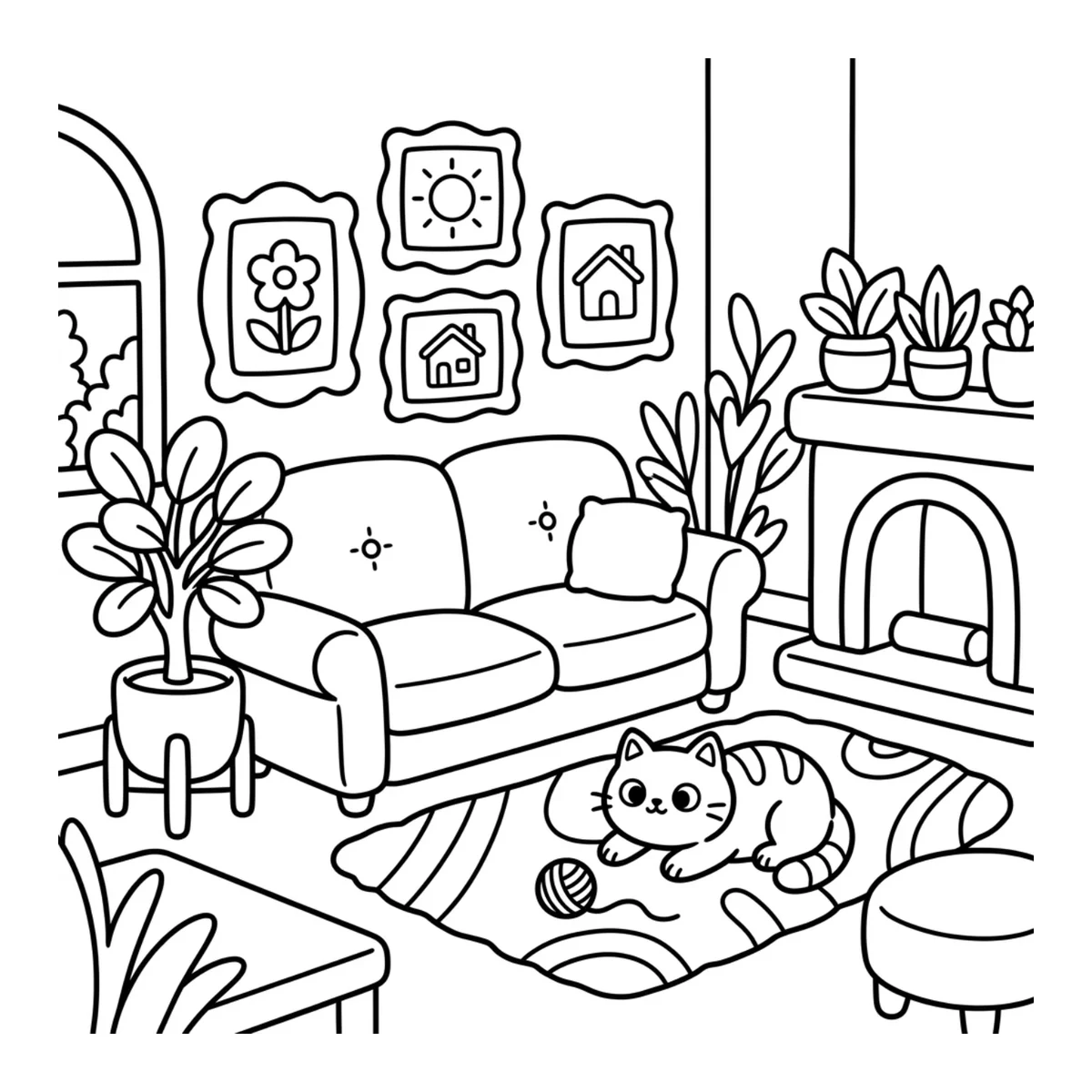
Write a short brief: the theme, who will color it and the level of detail you want. For example: “Cozy rooms with friendly cats, clear outlines and plenty of open space.” This is an example starting brief, not the original prompt used for the sample below.
2. Define the visual style
Decide whether you want bold, simple shapes or intricate scenes. Think about the person holding the pencils: small spaces and dense details create a different coloring experience from broad, open areas.
In LitPal, choose the coloring-book tool and describe your subject and style. Check the current credit estimate and selected options before you generate.
3. Generate, then inspect the artwork
Review the generated pages individually. Look closely at repeated objects, faces, hands, patterns and areas where lines run together. AI artwork can contain details that need another pass.
A useful page-review checklist
- Does the scene fit the theme?
- Are the shapes recognizable and comfortable to color?
- Are there unintended marks, text or confusing details?
- Is the amount of detail right for the intended reader?
4. Refine pages that need another pass
Use the artwork editing or regeneration options to improve a page. Be specific about what should change, and review the new result again. Editing and regeneration may use additional credits.
Compare pages side by side. A collection feels more consistent when its subjects, line weight and level of detail belong together.
5. Organize your book and add a cover
Put the pages in an order that feels deliberate. Check for accidental repeats and decide how simpler and more detailed pages should flow through the book.
Add a cover that represents the artwork inside. Review any generated text carefully, including the title and spelling.
6. Download and check the actual PDF
Download your book and open the PDF outside the editor. Check page order, margins, image clarity and the cover. Inspect pages at actual size, and make a test print if you plan to print the book.
If you intend to submit it to a publishing platform, compare the file with that platform’s current specifications. Review and submission are your responsibility; an export is not an acceptance or sales guarantee.
Put your idea on the page
Ready for your first book?
Explore real examples on the AI coloring book generator page, or check the current plans and credit estimator.
Create your account